We’re gradually rolling out new ways to take more direct control over your projects in
Duda Vibe. You can now edit your project’s code, update its theme, and make visual changes to sections yourself, without asking Copilot to make every change. That means faster, more precise edits for your Duda Vibe project, like changing colors, images, text, and more.

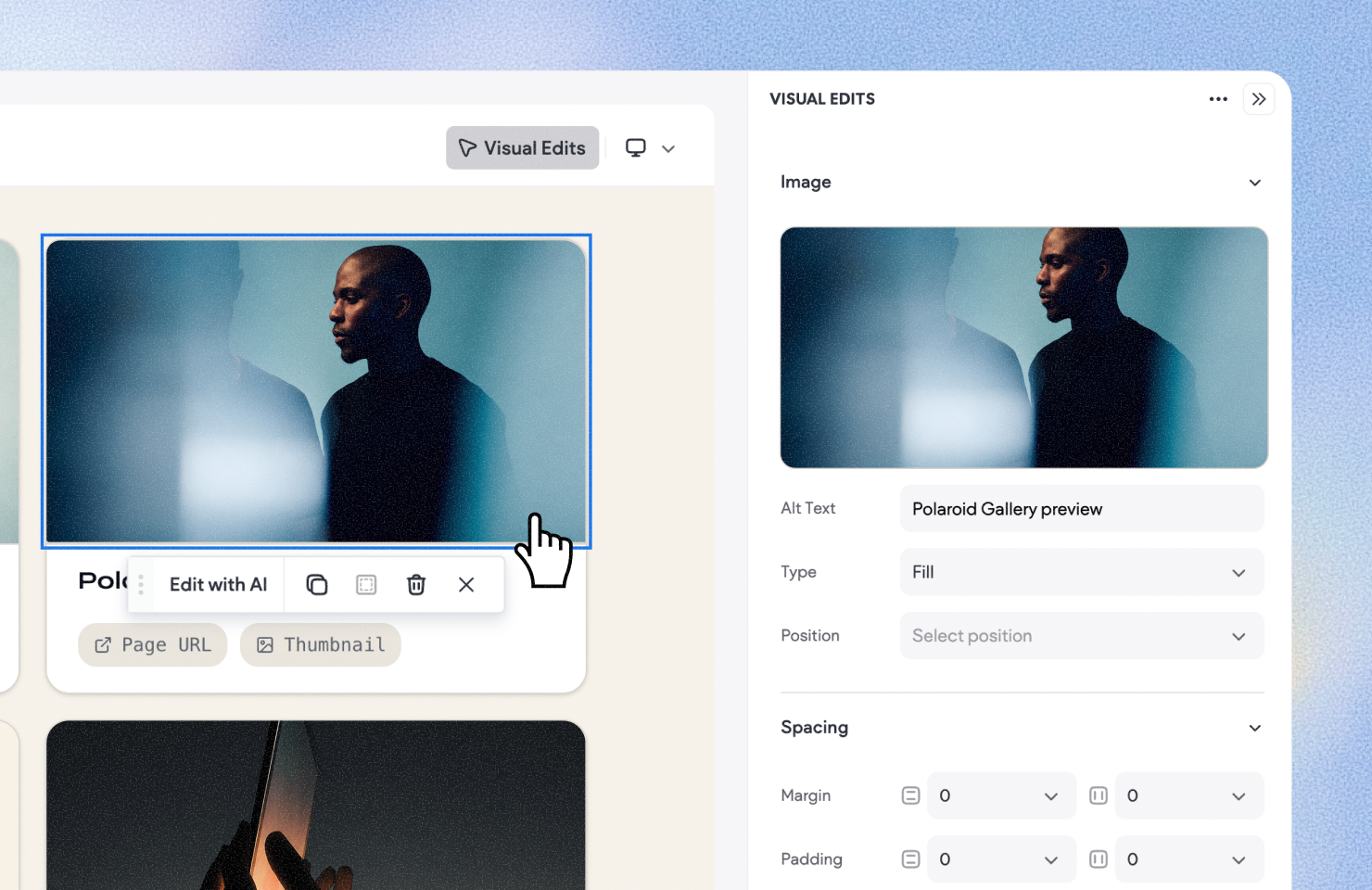
For projects created on or after September 15, visual edits give you another way to fine-tune your project without going through Copilot. You can directly adjust elements’ color, spacing, fonts, borders, and more, using the available settings and values for each one.
Just like direct code and theme editing, visual edits applies your changes to the code without using AI credits.

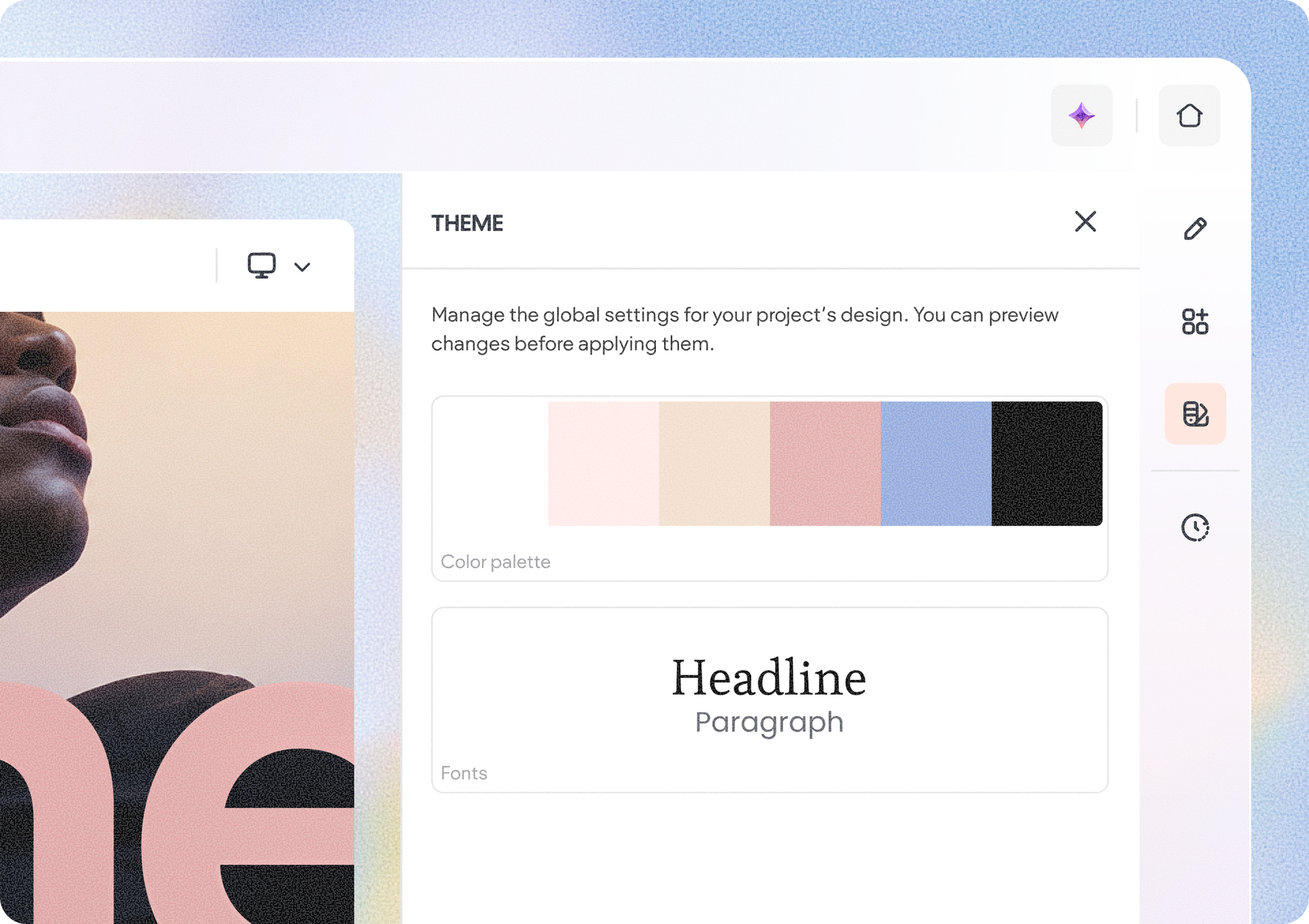
You can now edit your project’s theme colors and fonts directly, without asking Copilot to make those updates for you.
It’s an easier way to experiment with a different look, fine-tune the project to match a brand, or make quick design adjustments. And because these changes are applied directly to the code,
they won't use up your AI credits either.

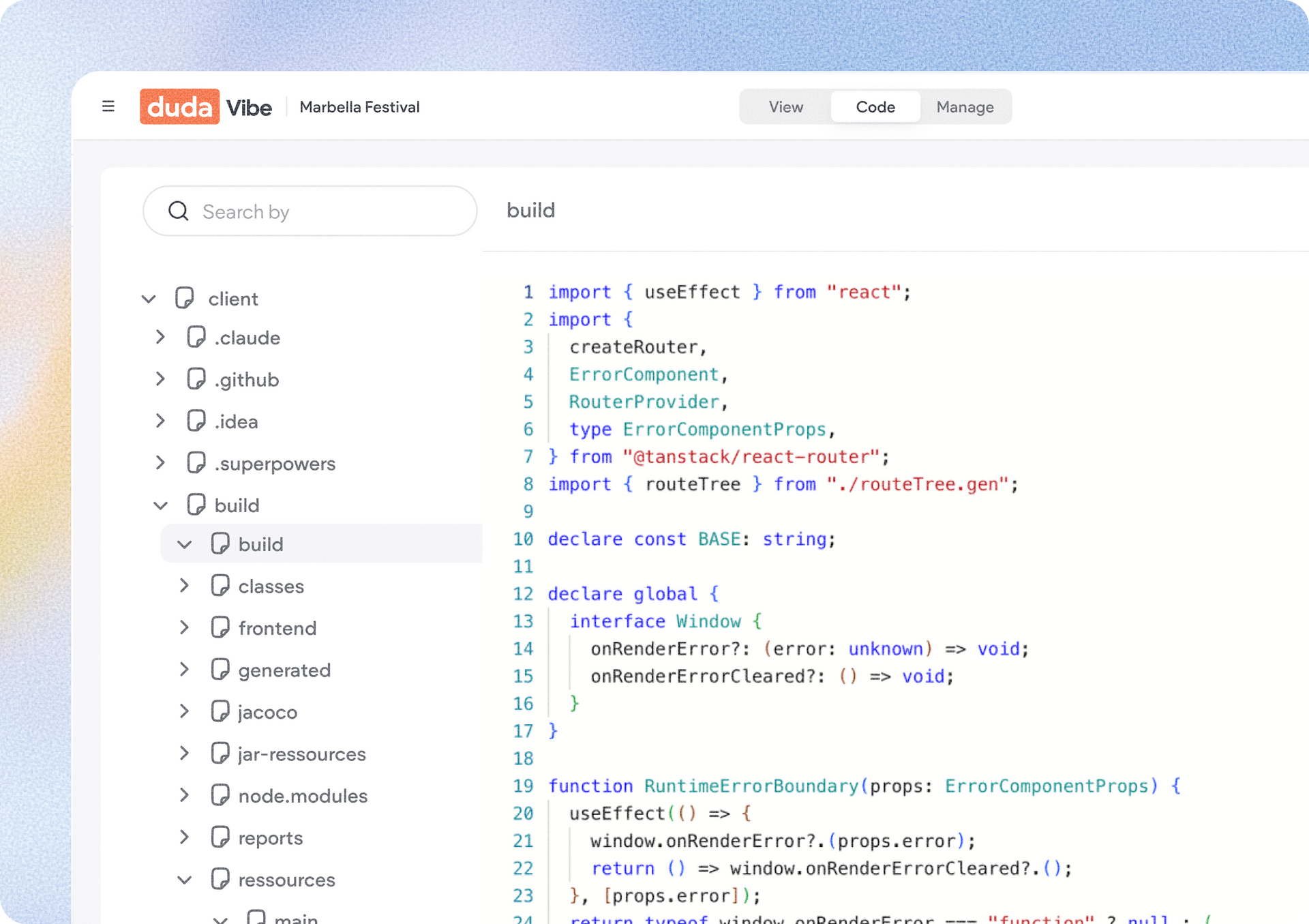
For those who want to get hands-on with their project, you can now edit code directly from Duda Vibe’s code view.
Browse through your project files, open the code you want to change, make your edits, and apply them directly to your project. There’s no need to explain the change to Copilot first, giving more technical users a faster way to make precise adjustments, and direct code editing has no AI cost.
And if your changes cause the build to fail? You’ve got options. You can ask Copilot to fix the issue for you, or simply revert to the previous working version and get back on track.
Together, these updates give you more flexibility in how you build with Duda Vibe: use Copilot when AI can accelerate your work, or jump in and make changes yourself when direct editing is simply the faster way to get exactly what you want.
•

Sign up to get feature releases, tools, and more to your inbox.