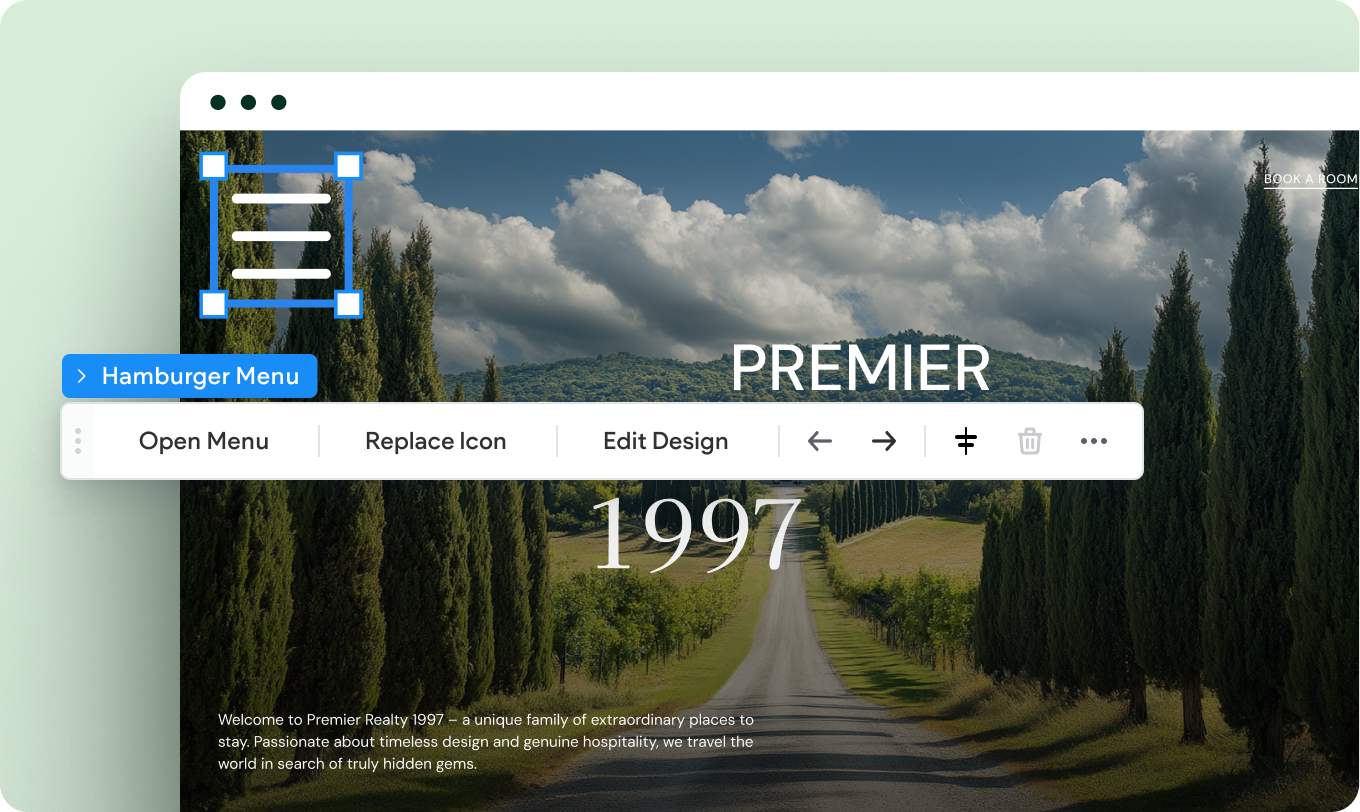
You can now add a fully customizable hamburger icon to your header and use it as a menu widget in all screen sizes. Place it anywhere in the header, change its color or size, replace its icon, and more.
And since this doubles as a menu widget, you can control its design as well as its open and close behavior using a unique set of dedicated actions, including choosing which side of the screen it’ll open from (left, top or right).

We’ve made a seamless transition behind the scenes to update your previous hamburger icon with this new one. If you haven’t seen it already, we’ll notify you in the editor the next time you're there to let you review your header in the different breakpoints to ensure it looks the way you want it to.
We’ve added hamburger menu layout options to the header presets section, where you choose your layout. This means more ways to customize your site header.

And here’s something to help you speed things up - we’ve added the hamburger icon and menu to multiple Editor 2.0 templates, so you can hit the ground running with this new update built-in.
Scroll effects (if done right) can enhance site visitors’ experience, your client’s branding, and the site’s navigation. To help you nail all three of these, we’ve added two scroll effect options to your site’s header (in both Basic and Advanced Header modes). Depending on the widgets in your header, the change header on scroll's list of options will be available for different elements in the header, like text, buttons, icons (including social icons), and more.
This lets you add a touch of professional branding by using two forms of your client’s logo that change on scroll. It’s a cool way to keep visitors engaged while allowing them to explore the site’s content without interference.
Depending on the widgets you’ve placed in your header, you’ll now have more scroll behavior settings in the design panel, for supported elements like text, buttons, icons (including social icons), and more.

In addition to the above, you can also control the header’s visibility on your site, on a per-page basis.
Want to hide the header from a specific page? You can easily do this through the
More Actions menu on the canvas and then selecting either hiding it from this page or from all pages. To set the header to show there again, go to your Layers panel, find the layer the header is on, and click the visibility icon.

Let us know! Share your request on the Duda Idea Board and we’ll consider it for future development.
•

Sign up to get feature releases, tools, and more to your inbox.